Auto Scaling Groups (ASG)
ASG Setup: Step-by-Step Guide
Step 1: Choose Launch Template or Configuration
- Provide a name for your ASG
- Choose an existing Launch Template or Launch Configuration
Step 2: Choose Instance Launch Options
- Select VPC and Subnets where your instances will launch
- Optional: Override launch template
Step 3 (Optional): Integrate with Other Services
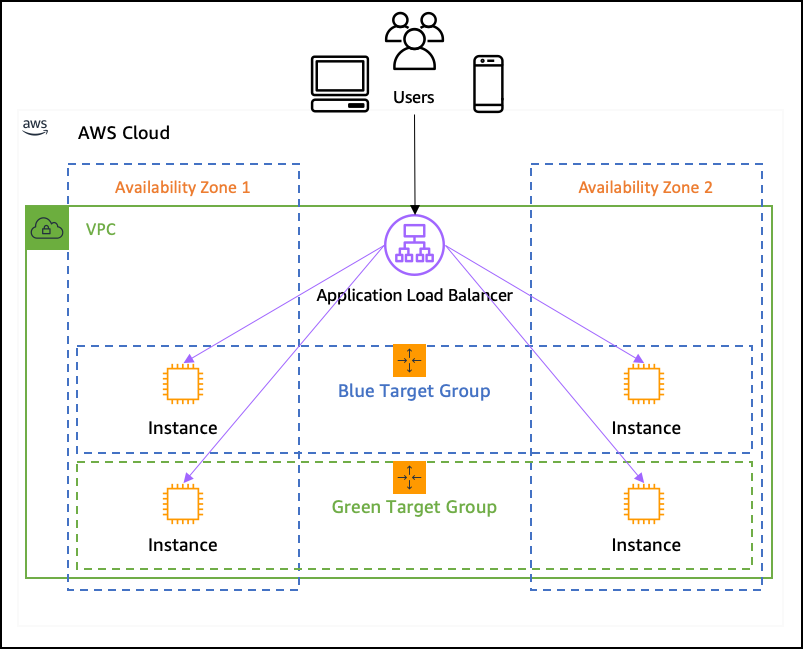
- Attach ASG to an ALB to distribute traffic
Enable Health Checks
- EC2 ELB EBS health status
Best Practice – Health Check Grace Period
Set it equal to the average time your app takes to be ready to serve traffic. ✅ Grace Period = App Initialization Time
- Example: 300 seconds
- During this time: ✔ ASG waits before taking action on failing health checks
Why it’s needed: If the instance runs a startup script (user data) that installs software or starts services, it won’t be ready immediately.
Exception
If instance is stopped/terminated, ASG replaces it immediately—even during grace period.
Step 4 (Optional): Configure Group Size and Scaling
- Desired Capacity: Number of instances to maintain
- Set Minimum and Maximum Capacity limits
- Scaling Policies:
- Target Tracking Scaling: Maintain a metric (e.g., average CPU)
Average CPU Utilization (How it Works)
Formula
Average CPU Utilization = ∑ CPU of InService Instances / N
- Only includes InService instances after warm-up
- Excludes instances still warming up
Example:
| Instance ID | CPU Usage | Warm-up Complete? |
|---|---|---|
| i-001 | 60% ✅ | Yes |
| i-002 | 70% ✅ | Yes |
| i-003 | 40% ✅ | Yes |
| i-004 | 90% ❌ | No |
Used for Avg: i-001, i-002, i-003 Avg CPU = (60 + 70 + 40) / 3 = 56.67%
Tip
💡If target is 50%, ASG will scale out (add instance).
Behind the Scenes
- CloudWatch collects metrics every 1 min (detailed) or 5 mins (standard)
- Once the Target Tracking Went (In Alarm) - then scale out
- Scale out Alarm - TargetTracking-demo-asg-AlarmHigh
- Scale in Alarm - TargetTracking-demo-asg-AlarmLow
Instance Warm-up Explained
Purpose
Prevent new instances from affecting scaling metrics (e.g., CPU) until ready.
- ASG sees average CPU > target → decides to scale out
- New instance excluded from average until warm-up completes
During warm-up
ASG still sees high CPU → may launch more instances.
Tip
📌 Set warm-up properly to prevent unnecessary scale-outs. ✅ Warm-Up Time = Grace Period + Load Ready Buffer (~10-30s)
Scale-In Protection
Info
📌 Prevents specific instances from being terminated during scale-in. ✔ ASG skips protected instances when reducing capacity.
TODO: Instance maintenance policy
Step 5 (Optional): Add Notifications
- Use Amazon SNS to get alerts of:
- Instance Launch
- Instance Termination
- ⚠️ Failed Scaling Activities
Step 6 (Optional): Add Tags
- Assign Tags & Enable tag propagation to launched instances
Step 7: Review
- Review all settings
Understanding ASG and Load Balancer Relationship
Note
If you don’t use LB with ASG — then if you just directly increase stress on 1 instance it ASG will launch another instance
Understanding:
- ASG is connected to instances directly via policy
- It don’t have any connection with LB.. LB does it job Load balancing
- ASG job is just to check the CPU Utilization and create the instances