🌐 Networking (Container Communication)
Docker provides multiple networking options:
- Bridge (default network) → Containers on the same host can talk to each other
- Host → Uses the host network directly (no isolation)
- Overlay → Enables communication across multiple hosts
- None → No network access
Example: Running a container with port mapping for Bridge Network
docker run -p 8080:80 nginxMaps port 80 of the container to port 8080 of the host.
🔍 Viewing Networks
| Command | Description |
|---|---|
docker network ls | List all available Docker networks |
docker network inspect <network_id_or_name> | Get detailed information about a specific network |
🌐 Creating & Removing Networks
| Command | Description |
|---|---|
docker network create <network_id> | Create a new custom network |
docker network rm <network_name> | Remove a specific network |
🔗 Connecting & Disconnecting Containers
| Command | Description |
|---|---|
docker network connect <network_name> <container_name> | Connect a running container to a network |
docker network disconnect <network_name> <container_name> | Disconnect a container from a network |
🚀 Running Containers with Network Options
| Command | Description |
|---|---|
docker run --network <network_name> <image> | Start a container in a specific network |
docker run --network host <image> | Use the host network (no isolation) |
docker run --network none <image> | Start a container with no network access |
🔄 Port Mapping & Communication
| Command | Description |
|---|---|
docker run -p <host_port>:<container_port> <image> | Map container ports to host ports (default bridge network) |
docker exec -it <container_id> ping <another_container> | Check communication between containers in the same network |
🌐 Docker Networking Examples
Bridge is default:
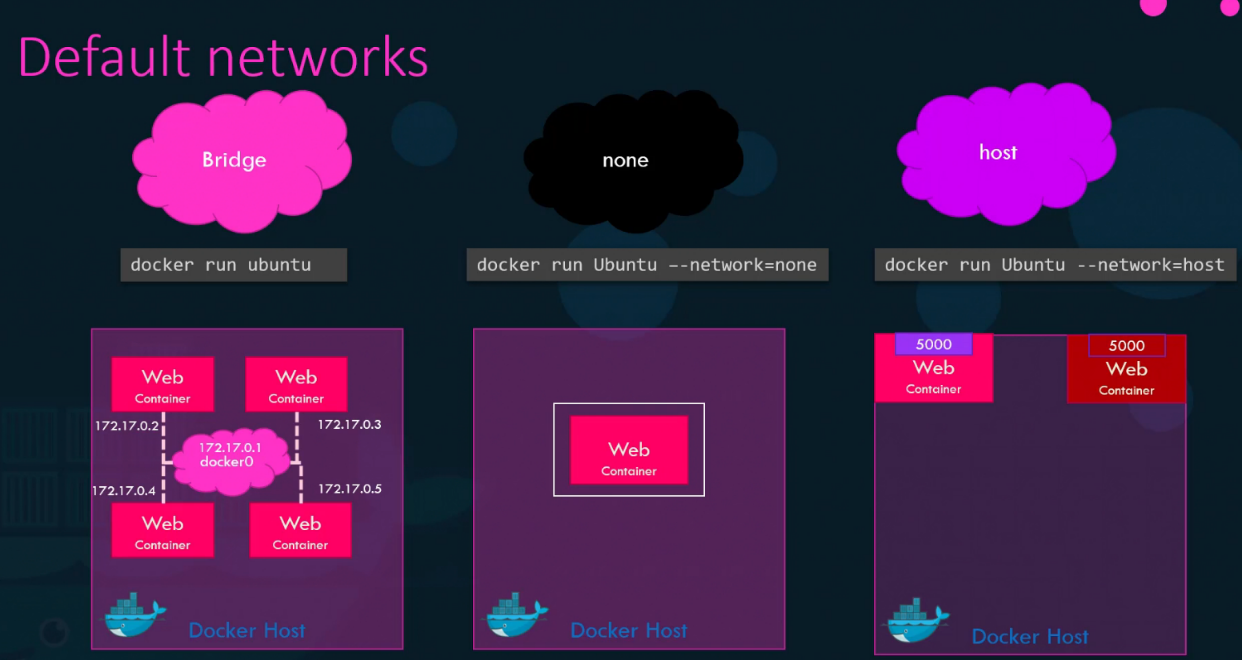
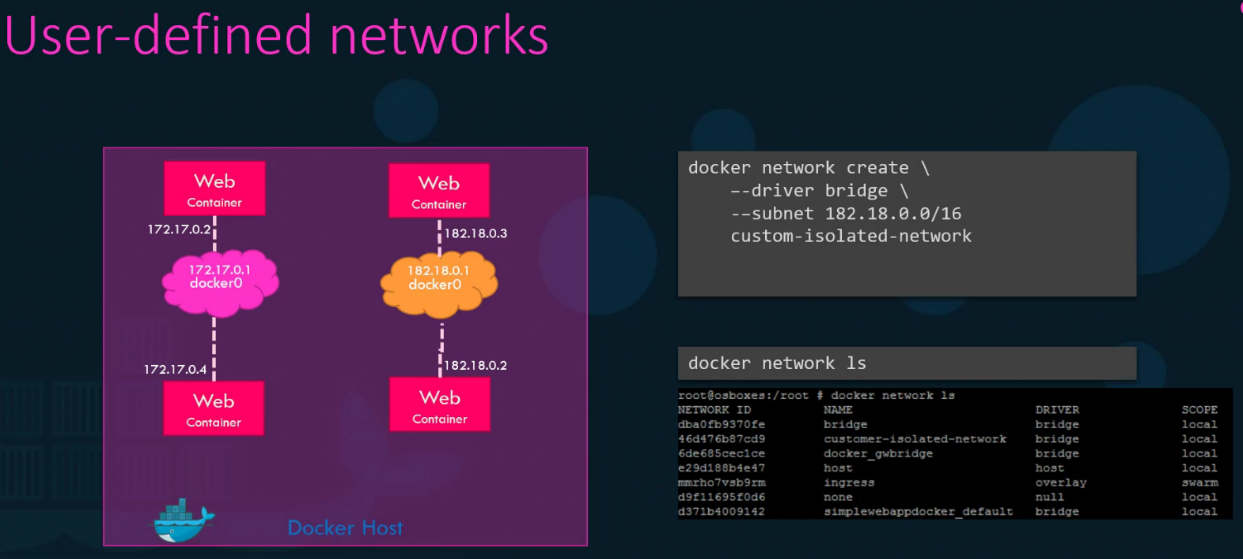
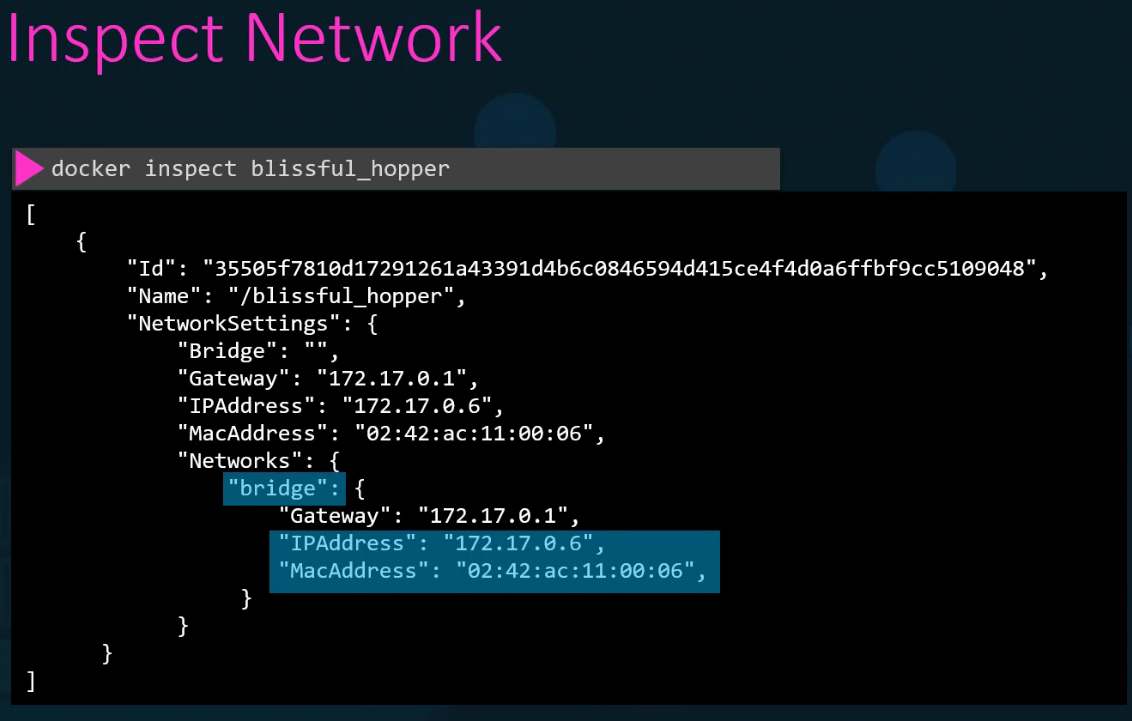
Docker has built-in DNS server that help container to resolve each other with the name of the container.
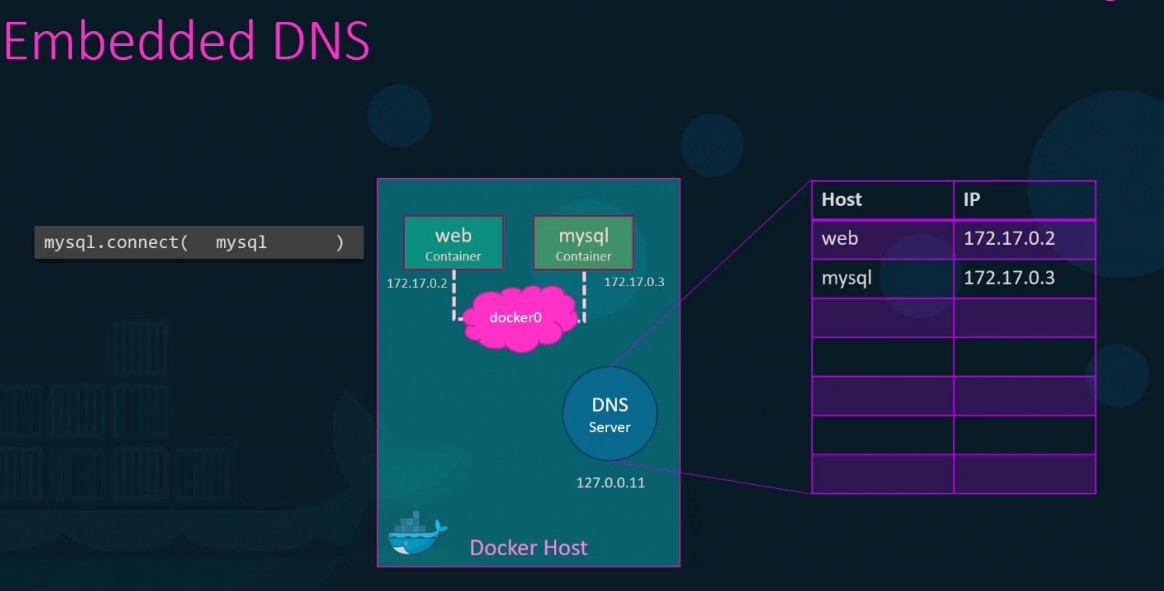
🛠️ Practical Example: Creating Custom Network
# Create network
docker network create --driver=bridge --gateway=182.18.0.1 --subnet=182.18.0.0/24 wp-mysql-network

# Create MySQL DB in network
docker run -d --name=mysql-db -e MYSQL_ROOT_PASSWORD=db_pass123 --network=wp-mysql-network mysql:5.6

# Create application in network with link to mysql-db
docker run -d --name=webapp -p 38080:8080 -e DB_Host=mysql-db -e DB_Password=db_pass123 --network=wp-mysql-network --link mysql-db:mysql-db kodekloud/simple-webapp-mysql